This review is based on hands-on usage, focusing on real usability, pricing clarity, performance consistency, and support responsiveness rather than promotional claims.
After testing Webflow’s Starter Plan, it felt like the perfect balance between design freedom and ease of execution. Unlike rigid drag-and-drop builders, Webflow gave me the flexibility of custom coding without needing to write a single line of code. The visual editor feels sleek, and every change instantly reflects as if you’re shaping the site in real time. It’s a tool that rewards creativity. Ideal if you want full control over layouts, animations, and interactions without depending on pre-set templates. While there’s a slight learning curve, once you get the hang of it, the ability to design pixel-perfect websites directly in the browser is empowering. For me, it stood out as a tool that sits right between pure designers and developers, bridging the gap beautifully.
Who is it Best For?
Freelancers who want to deliver professional websites without coding.
Creative designers looking for pixel-perfect control.
Agencies building scalable, client-ready websites.
Businesses that value design flexibility and unique brand identity.
Teams who want design-to-production workflows without relying heavily on developers.
What Makes it Stand Out
What sets Webflow apart is its designer-first approach. You get the power of coding without touching code. The platform merges visual design with CMS functionality, making it possible to build fully dynamic, responsive websites in one place. Its built-in hosting, animation controls, and client-friendly editing features create a true all-in-one ecosystem that rivals both WordPress and custom development.
7Expert Score
Powerful but Complex
While its flexibility is unmatched, the learning curve and pricing make it less beginner-friendly compared to Wix or Squarespace, and its e-commerce is solid but not Shopify-level.
Ease of Use
6.5
Templates & Design
9
Ecommerce Capabilities
6.5
Pricing & Value
7
Customer Support
6.5
Performance Breakdown: Pros and Cons
Full Design Control
Built-In CMS
Advanced Animations & Interactions
Clean, Responsive Code
No Plugins Needed
Steep Learning Curve
Limited eCommerce functionality
No app marketplace for third-party add-ons
Need higher-tier plans to unlock full CMS
Who Should Use Webflow?
Freelancers – Perfect for delivering professional, custom websites to clients without heavy coding.
Creative Designers – Ideal if you want pixel-perfect layouts, unique animations, and design freedom.
Agencies – Great for scaling projects, building dynamic sites, and streamlining client handovers.
Startups & Small Businesses – Suited for those who want a distinctive, branded online presence without depending on developers.
Enterprises & Teams – Best for design-to-production workflows, CMS-driven projects, and collaborative website management.
Who Should Skip This Tool?
Complete Beginners – If you want a plug-and-play builder with zero learning curve, Webflow may feel overwhelming.
Budget-Conscious Users – Its paid plans are pricier than basic website builders like Wix or Weebly.
Simple Bloggers – If your main goal is just publishing quick posts, a tool like WordPress is more straightforward.
Non-Designers – Those who aren’t keen on tinkering with layouts and structure may find it too detailed.
Hobby Users – If you just need a basic site without advanced customization, Webflow might be overkill.
Ease of Use (UI/UX)
I appreciate how quickly I can spin up a starter project with pre-built layouts
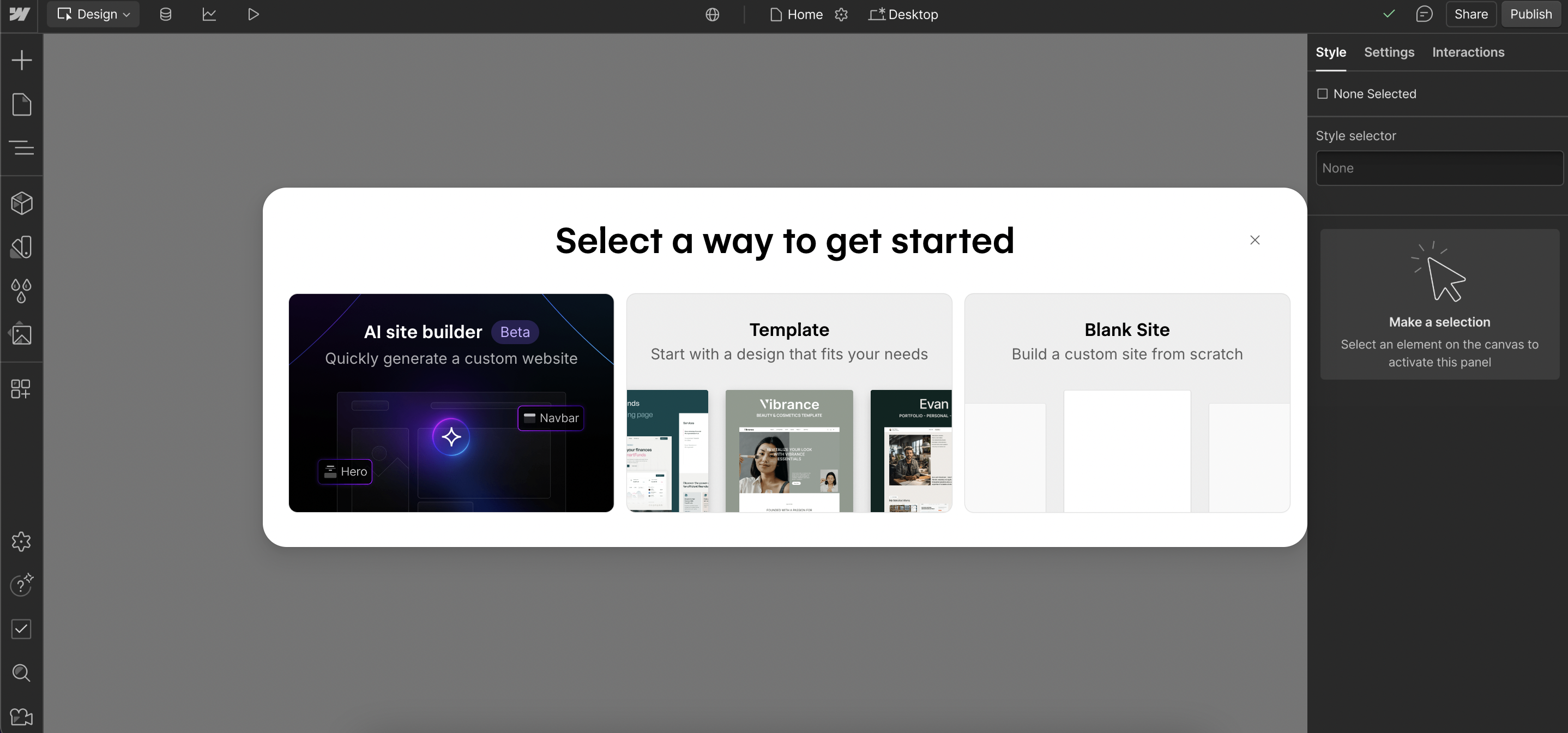
Getting started with Webflow is straightforward. You can sign up using email, Google, or even SSO for teams. Once logged in, the onboarding wizard asks a few simple questions about your website type (portfolio, business, e-commerce, etc.). I appreciated how quickly I could spin up a starter project with pre-built layouts, which felt like a head start instead of a blank canvas.
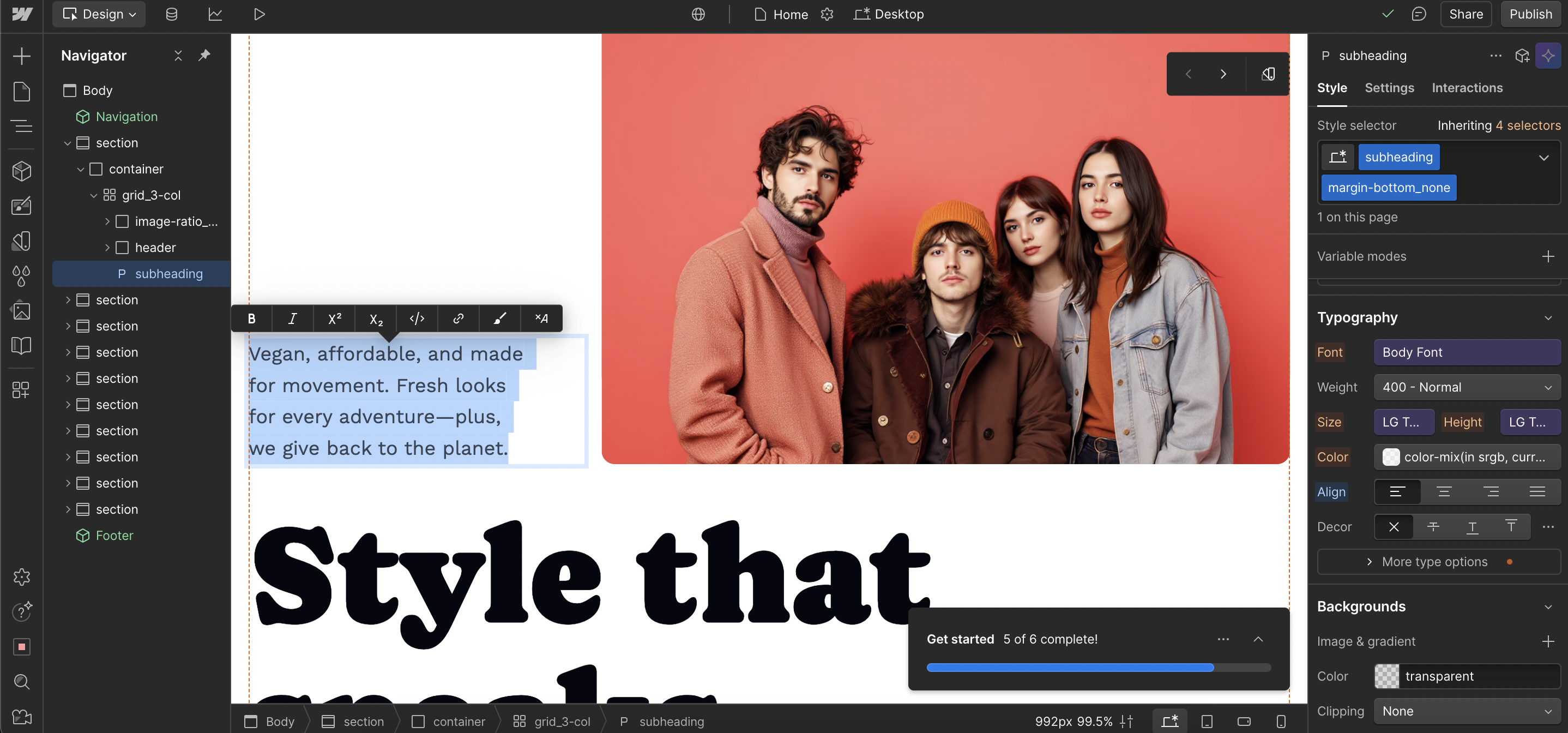
The editor is powerful but not as “instant” as tools like Wix or Squarespace. Instead of simple drag-and-drop, it works more like designing in Photoshop or Figma where every element is placed with intent. Once you adapt, the editor becomes fluid, letting you build highly customized layouts that aren’t possible in block-based builders.
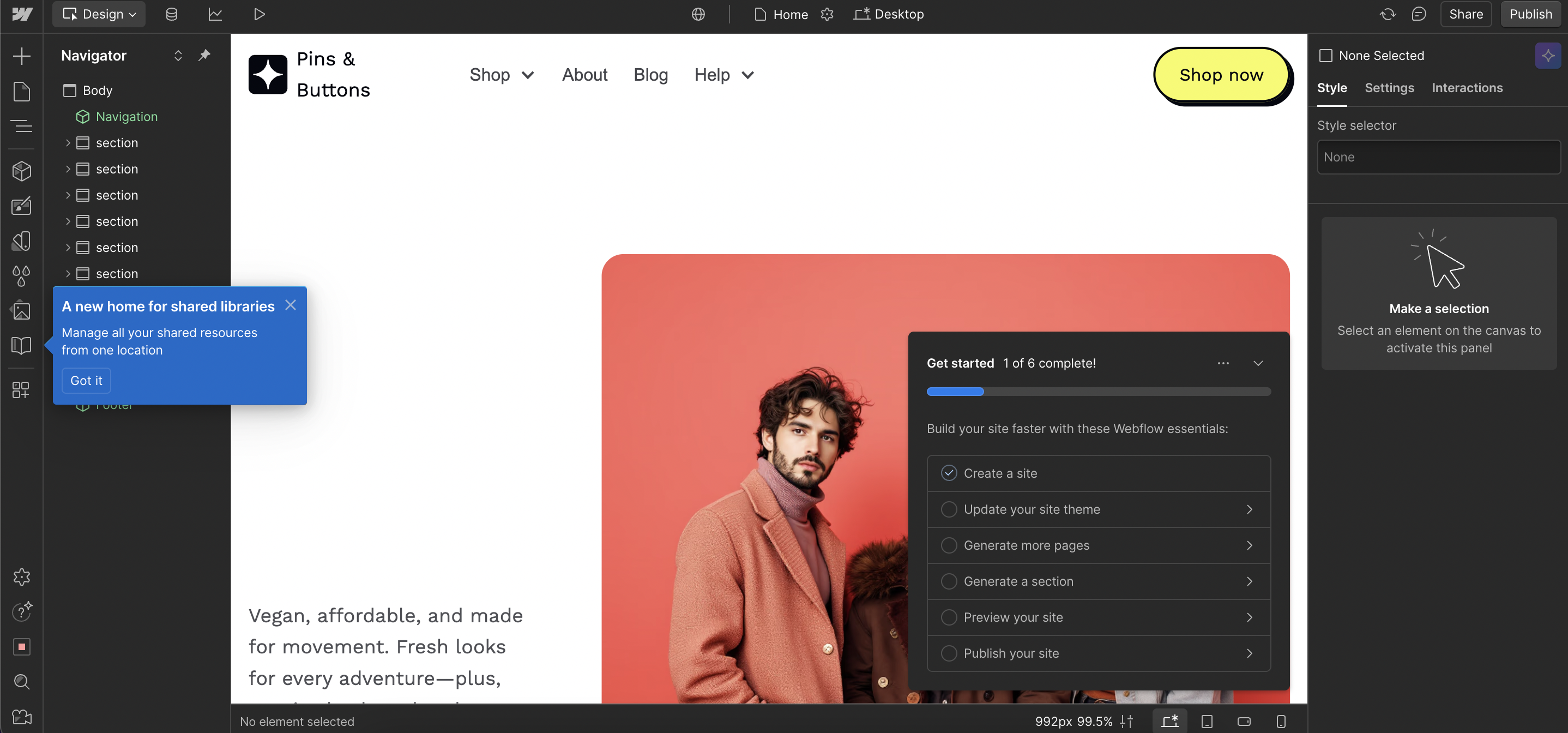
This is the sample website that I created using this tool.
Learning Curve
Beginners – Expect a learning curve. If you’re used to plug-and-play editors, Webflow may feel intimidating at first.
Advanced Users & Designers – You’ll feel right at home, as it mirrors professional design tools with layers, grids, and custom interactions.
Mobile Responsiveness One standout feature is Webflow’s responsive design control. Instead of relying on automatic adjustments, you can fine-tune breakpoints (desktop, tablet, mobile landscape, mobile portrait) individually. This gives you full control over how your site looks across devices. It’s a big advantage compared to builders that “guess” mobile layouts.
Design & Templates
Over 1,000 templates, ranging from free to premium.
The quality stands out. Most templates feel modern, sleek, and purpose-built for industries like portfolios, agencies, startups, and e-commerce. Unlike some builders where templates look generic, Webflow’s library is polished and professional, often resembling custom-designed sites.
Customization Options is where Webflow shines.
You can tweak colors, fonts, layouts, grid structures, and animations with precision. The platform feels like a hybrid between a website builder and a design tool such as Figma where you’re not locked into rigid blocks. Whether it’s parallax scrolling, hover effects, or custom breakpoints, the creative freedom is nearly limitless.
Webflow’s templates are high-quality starting points, but the real magic lies in how deeply you can customize them. Perfect for those who want design freedom beyond cookie-cutter layouts.
Ecommerce Capabilities
The Starter Plan of Webflow does not provide full ecommerce functionality—it’s primarily for testing design and publishing simple static sites. If you’re evaluating Webflow for an online store, you’ll need to look at their Ecommerce Standard or higher plans. That said, here’s how ecommerce compares across Webflow tiers so you know what’s missing in Starter:
Product Catalog, Variants & Categories – Starter doesn’t support product listings. Paid Ecommerce plans let you add products, manage variants (like sizes, colors), and organize categories.
Payment Gateways – No payment processing on Starter. On Ecommerce plans, Webflow integrates with Stripe, PayPal, and Apple Pay.
Shipping, Tax & Inventory Management – Absent in Starter. Full setup for tax rates, shipping zones, and stock tracking is available only in higher plans.
Abandoned Cart Recovery, Coupons & Discounts – Not available on Starter. These advanced marketing features are reserved for Ecommerce Plus/Advanced tiers.
Ecommerce: Webflow vs Others
Advantages of Webflow over simpler builders (Wix/Squarespace/etc.) • More precise layout control, custom interactions, cleaner HTML/CSS output • Better scaling/design potential if site grows or demands get complex • More freedom for custom animations, dynamic content, interactions
What Webflow may lack vs others • Ecommerce features: abandoned cart recovery, multi-currency, localized shipping/tax may be more polished or easier in Shopify or WooCommerce setups • Simpler plans might lack certain marketing tools or integrations that Wix/Squarespace include by default • Higher cost for comparable features; more learning overhead
Payment Gateways Limitations
Transaction fees: On Webflow’s “Standard Ecommerce” plan there is a 2% transaction fee (on top of payment processor fees). On higher ecommerce plans (Plus, Advanced) this fee is removed.
Gateway availability: Stripe / PayPal may not be available or fully functional in all countries; this can limit payment options.
Abandoned cart feature is not native in basic plans; requires apps. That means dependency on 3rd-party tools and possibly extra cost.
While you can use discount codes, more advanced promotions, loyalty, etc., may require external apps or custom logic.
Publishing & Hosting
Publishing a site on Webflow is seamless. You can hit “Publish” directly from the editor, and changes go live instantly. I liked that it offers both staging (Webflow.io subdomain) and custom domain publishing, so you can test layouts privately before making them public.
Webflow’s hosting is powered by Amazon Web Services (AWS) and Fastly CDN, ensuring sites load quickly worldwide. There’s built-in SSL security, automatic backups, and version history, so you don’t have to worry about external plugins or manual server configurations.
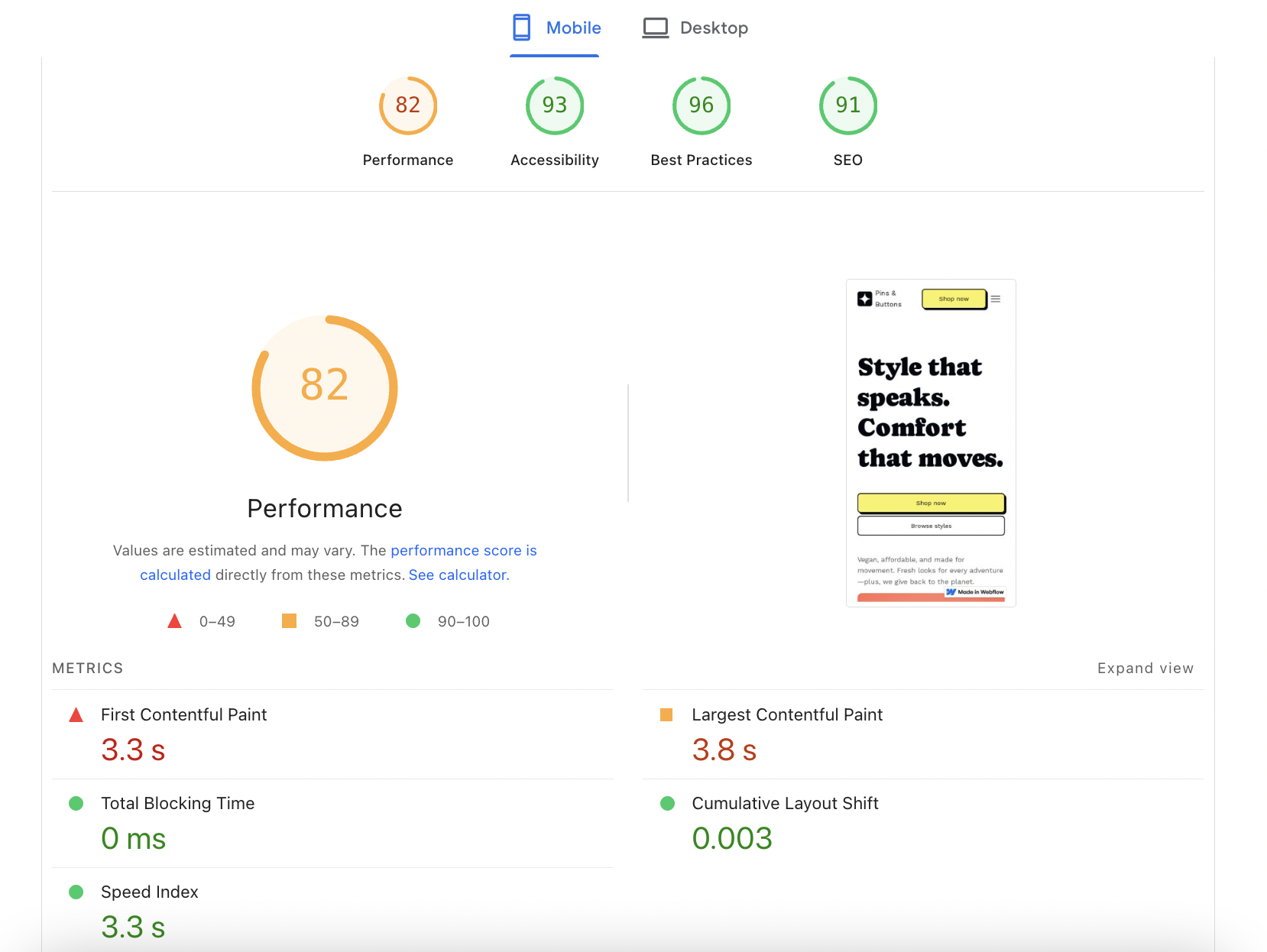
In my testing, page load times were consistently strong due to global CDN distribution and optimized hosting. Uptime has been reliable, with 99.9% availability reported. This is a big advantage over WordPress, where speed and security often depend on third-party hosting providers.
Webflow’s publishing and hosting are among the best in class—fast, secure, and hassle-free. You don’t need to juggle separate hosting services, making it a true all-in-one solution for professionals and businesses.
Pricing & Value for Money
Webflow may not be the cheapest option, but it delivers high value for professionals who need flexibility, performance, and scalability in one platform.
Free Plan / Trial
Webflow offers a free plan with limited features. You can build and publish to a Webflow.io subdomain, but advanced features like custom domains, CMS items, and e-commerce are locked. It’s a great way to test the platform, though not practical for professional use.
Paid Plans
Basic – $14/month For simple websites, includes custom domain & 50 GB bandwidth.
If you’re building a portfolio site, just a few pages, maybe 1-2 projects, go with Basic Site Plan — simple, uses custom domain.
Planning to run a small blog / maybe write articles, want site search, frequently update, CMS Site Plan is the right choice.
In case you have a company website with many pages, expect growth & traffic, want multiple people to help edit, the Business Site Plan is advisable. I would recommend appropriate Workspace plan for team / collaboration.
If you want to want to sell products online; maybe small catalog, start with Standard eCommerce & upgrade later if sales grow.
For large scale store, many SKUs, need robust support, staff, no transaction fees, Plus or Advanced eCommerce plan is preferred, depending on size.
Webflow sits at the premium end of pricing, especially for e-commerce. While Wix and Squarespace offer cheaper plans, they don’t match Webflow’s level of customization, responsive control, or built-in hosting power. For designers, agencies, and serious businesses, the value lies in avoiding developer costs and gaining full creative freedom.
Customer Support & Community
Webflow’s support ecosystem is solid but slightly different from traditional website builders. Instead of 24/7 live chat, it leans heavily on its email ticket system and extensive help center.
Response times via email are usually within a day, and the answers tend to be detailed and helpful. There’s no direct phone support, which might disappoint some business users.
What really stands out is the Webflow University – an extensive library of tutorials, video courses, and guides that make learning the platform much easier. Combined with its community forum, active Slack groups, and social communities, you’re never far from answers or inspiration. While real-time support is limited, the depth of resources and peer knowledge sharing fills much of the gap.
Best Alternatives of Webflow
Wix – Easier for beginners with its drag-and-drop editor and hundreds of pre-made templates. However, it lacks the advanced design flexibility and clean code output that Webflow provides.
Squarespace – Known for elegant templates and simple setup, making it ideal for creatives and small businesses. But it doesn’t match Webflow’s pixel-level customization or interaction design.
WordPress – Extremely versatile with plugins and themes, and great for content-heavy sites. Still, it requires more maintenance and developer involvement compared to Webflow’s all-in-one, design-driven approach.
If you prioritize creative freedom and control, Webflow edges ahead; if simplicity or cost is your top concern, Wix or Squarespace may be better fits.
Feature
Webflow
Wix
Squarespace
Ease of Use
Moderate (learning curve)
Very easy
Easy
Templates & Design
Highly customizable, pixel-perfect
900+ templates, drag & drop
Polished, modern templates
Ecommerce
Yes (scalable CMS + ecommerce)
Yes (good for small stores)
Yes (strong ecommerce tools)
Pricing (Starting)
$14/mo
$16/mo
$16/mo
Free Plan/Trial
Free starter plan
Free plan available
14-day trial
Support Options
Email, tutorials, community forum
24/7 chat, help center
Chat (limited hours), email, guides
Ideal For
Designers, freelancers, agencies
Beginners, small businesses
Creatives, small businesses
Final Verdict
Webflow strikes a unique balance between design freedom and technical power. It’s not the simplest builder to pick up, but once you get past the learning curve, it offers unmatched control over layouts, animations, and responsive design. The built-in CMS and hosting make it more than just a site builder—it’s a complete platform for professionals. However, it may feel overwhelming or expensive for beginners or those seeking quick setups. Overall, Webflow is best suited for designers, freelancers, and teams who value creative flexibility over simplicity.